Team & permissions
For the account owner or team admin. Everything here happens on the Team page
(https://<your-site>/team) — no technical setup.
Seat types
| Seat | What they can do | Price applies per user/month |
|---|---|---|
| Analyst | Build dashboards and charts, query your data directly, everything a Viewer can | see Billing |
| Viewer | See only the dashboards assigned to them — nothing else | see Billing |
| SigzenAI licence | Add-on to either seat (or on its own): ask questions in plain English and get charts back | see Billing |
A SigzenAI licence can also be granted to someone with no BI seat — useful for a person who only asks questions and never opens dashboards.
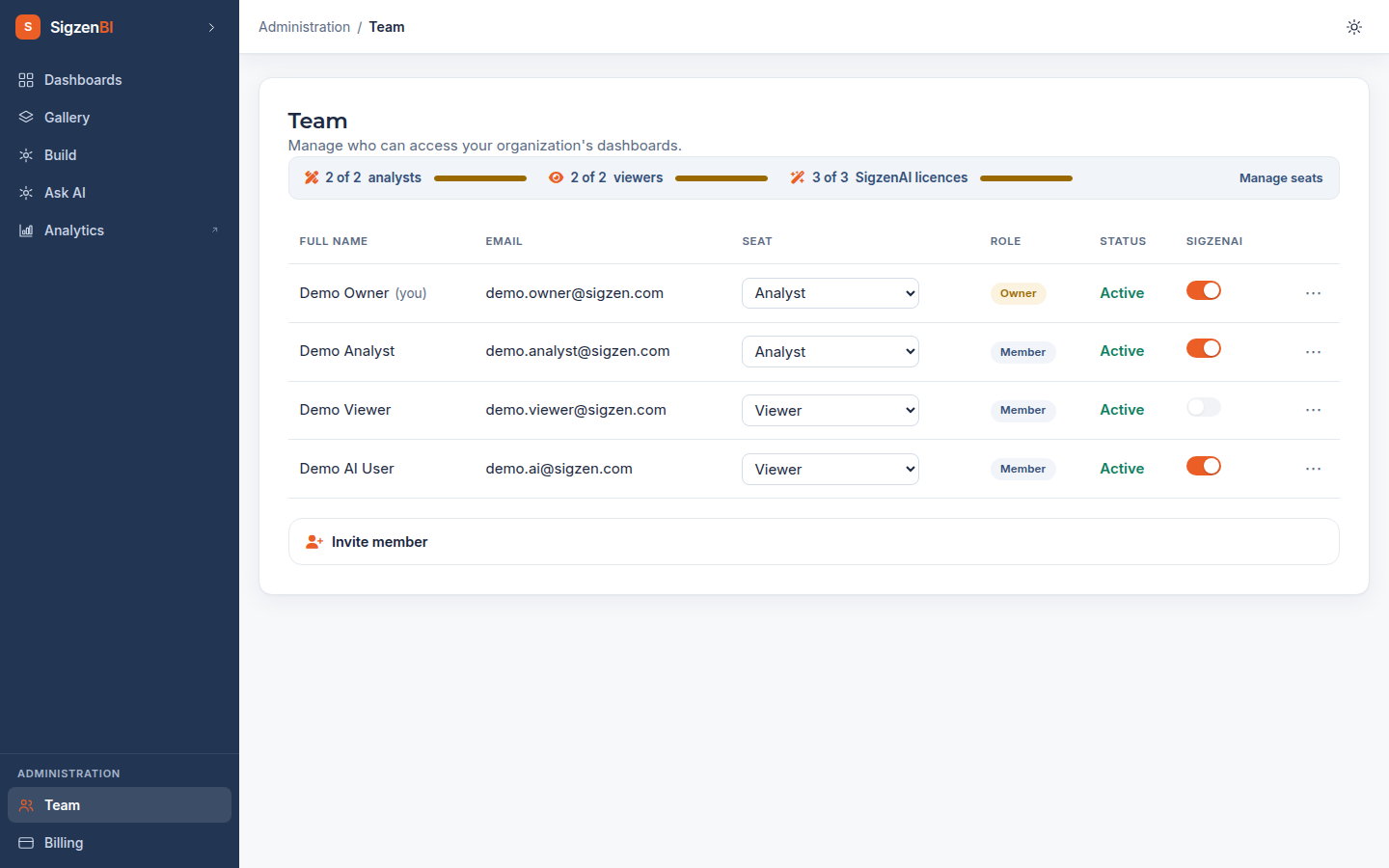
Inviting someone
- Team → Invite: enter their email, pick the seat type, optionally tick SigzenAI.
- SigzenBI shows you a one-time temporary password — copy it and pass it to them yourself (it is shown once and not emailed).
- They sign in at
https://<your-site>/portal/loginwith that password. There is no forced change on first login, so ask them to set their own from the Analytics password card on their dashboard — the same card has a Reset password control.
Invites respect your purchased seats: you can't assign more Analyst or Viewer seats than you've bought, and SigzenAI licences can't exceed your total seats. The Billing page's "Your seats" card always shows purchased vs assigned, with names.
Restricting what a member sees (row-level permissions)
You can limit a member to specific slices of data — for example, one company, one branch, one territory or one cost centre. Restrictions are set in your own ERPNext, not in SigzenBI: add Frappe User Permissions for that user in the usual place, and SigzenBI reads them as the source of truth. They then apply everywhere the member sees data: dashboards, charts, and plain-English answers. Members with no restriction see all of the company's data their seat allows.
Removing or changing someone
- Change seat type any time from their row. Downgrading Analyst → Viewer takes effect immediately, including in the analytics workspace.
- Remove frees the seat for someone else and disables their access immediately.
- Note: if you demote or remove an Analyst and later promote them again, their direct
analytics-workspace access may need support to restore
[known limitation — see Troubleshooting]. Dashboards and chat work immediately either way.
The analytics workspace (Analysts)
Analysts get a one-click Open Analytics button that signs them into the SigzenBI
analytics workspace for deeper authoring — the link is single-use and expires in seconds, so
always enter through the button. (New accounts: use the one-click button; a separate
workspace password is not available for fresh accounts yet [known limitation].)