Install SigzenBI
Two paths to the same place. On Frappe Cloud there is no terminal and nothing to configure. On your own benchyou run three commands. Either way you finish at your own site's signup page, and success looks identical: nine dashboards filling with your own data.
Install SigzenBI on Frappe Cloud
Recommended path — no server work. Written for the person who runs the business, not a developer. If you self-host your ERPNext on your own server, use Install on your own server instead.
What you need
| Requirement | Details |
|---|---|
| An ERPNext site on Frappe Cloud | Version 16. On v15 or older, talk to us first. |
| An Administrator login for that site | You'll approve the app install and the data connection |
| About 15 minutes | Most of it is watching dashboards appear |
That's all. No terminal, no server settings, no technical setup.
Step 1 — Install the app
- Log in to your Frappe Cloud dashboard at cloud.frappe.io.
- Open your site → Apps → Install App, and search for SigzenBI.
- Confirm the install. Frappe Cloud updates your site — this takes a couple of minutes.
You should now see: a SigzenBI tile on your site's app screen (/apps).
Step 2 — Sign up from your own site
- On your site, go to
https://<your-site>/portal/signup(or click the SigzenBI tile). - The form is pre-filled with your company name and your name and email — check them and set a password. The company name becomes your SigzenBI account name, so make sure it's right.
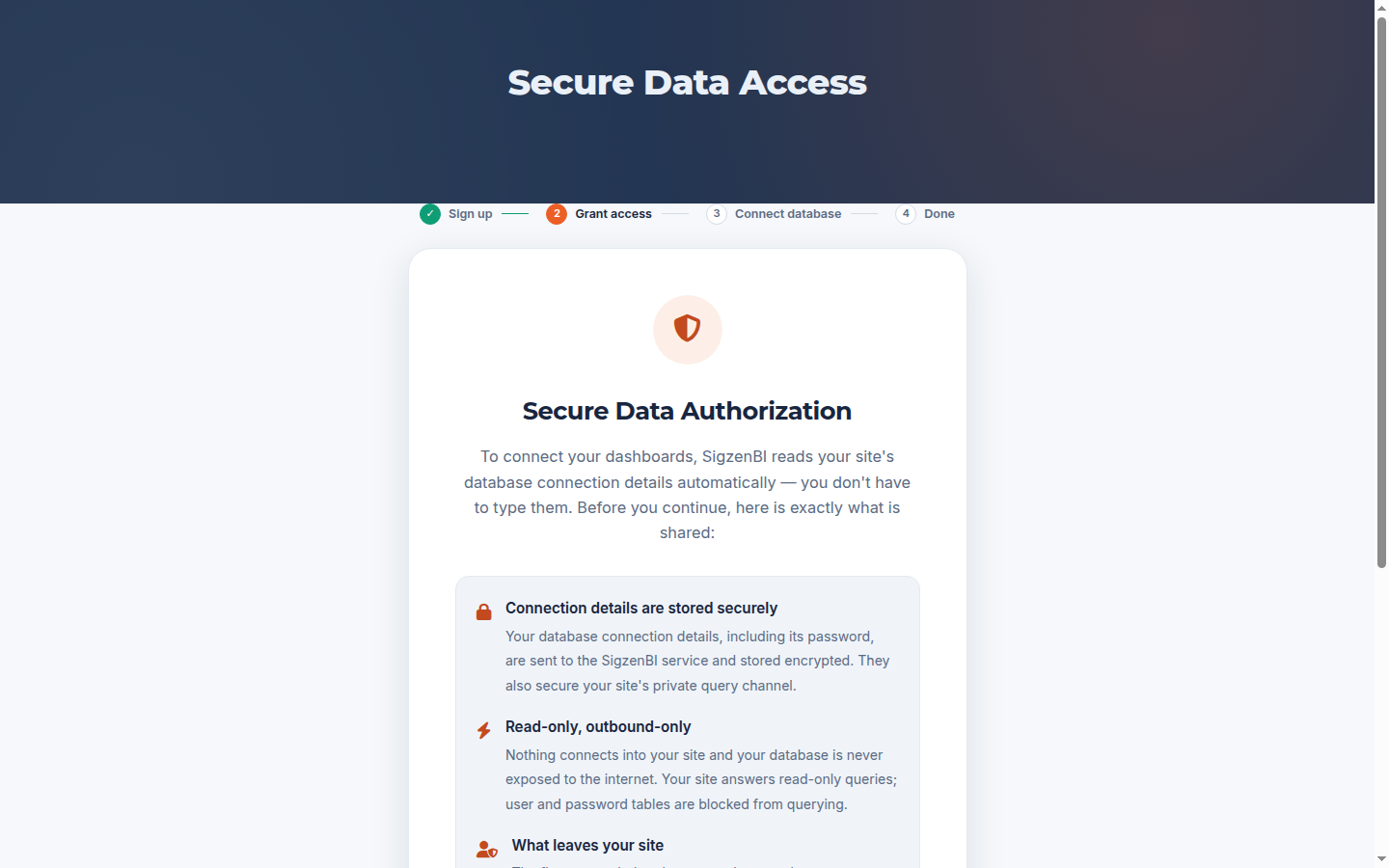
- Submit. You'll land on the Grant access step, which explains exactly what data SigzenBI will read from your site and what is sent to the SigzenBI service — read it, then click Allow. (Details: Security & your data.)
- The Connect database step is filled in automatically from your site — you don't need to know or type any technical values. Submit it.
You should now see: a "Thank you" page, then the SigzenBI sign-in at
https://<your-site>/portal/login.
Step 3 — First dashboards
Sign in with the email and password from Step 2.
You should now see: your dashboard home with nine dashboards — Selling, Buying, Stock, Finance, GST, Manufacturing, CRM, Projects and an Executive Overview — filling with your own company's data. On a brand-new account this takes a minute or two; a "Setting up" message and one page reload are normal on the very first visit.
Your 14-day free trial starts now, with 125 included question credits. Next: Your first 30 minutes.
If something looks wrong
- Dashboards empty after 5 minutes → see Troubleshooting, items 1–3.
- Signup page says the site is already registered → your site already has a SigzenBI
account; go to
/portal/loginand sign in, or ask the colleague who set it up. - Anything else → support@sigzen.com.